
WhatsApp has over two billion users worldwide and it is the default messaging app for most people in the UK. But almost everyone uses it the same way: open the app, type a message, send it. Maybe make the occasional voice call.
The app does a lot more than that. Some of the most useful features are buried in menus that most people never open. Others were added in updates that rolled out quietly with no fanfare.
This guide covers the WhatsApp features that actually make a difference in daily use. Not gimmicks. Not obscure settings for the sake of it. These are things that save you time, protect your privacy, or fix problems you have probably been putting up with for months.
Privacy Features You Should Turn On Right Now
WhatsApp has a surprising number of privacy controls. Most of them are off by default, which means your account is more visible than you might realise.
- Hide your online status. By default, everyone can see when you are online. To change this, go to Settings, then Privacy, then Last Seen and Online. You can set Last Seen to Nobody or My Contacts and separately choose to hide your online status from everyone. This means people can still message you, but they will not see you actively using the app.
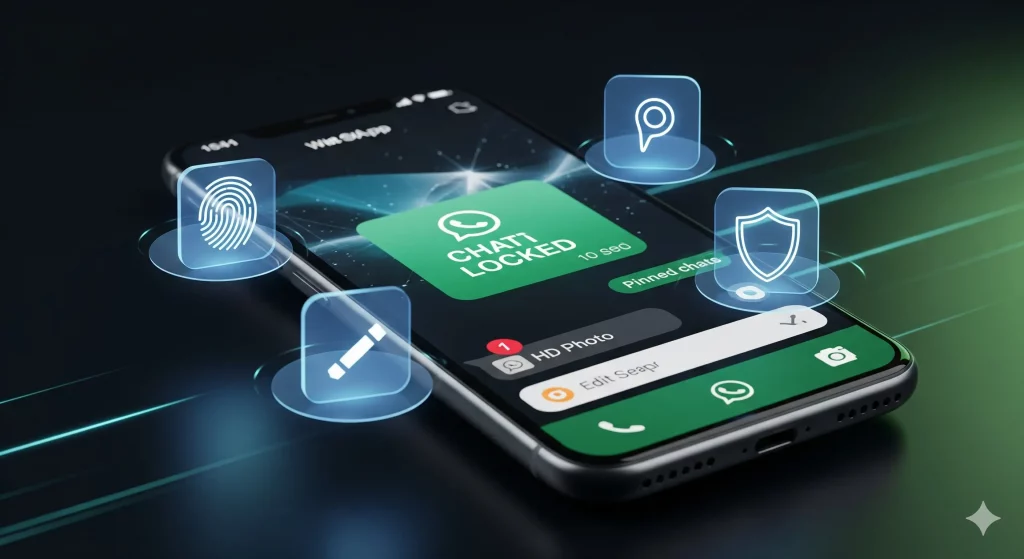
- Lock individual chats. If someone picks up your phone, they can normally read any WhatsApp conversation. Chat Lock moves a conversation into a hidden folder that can only be opened with your fingerprint, Face ID, or phone passcode. Open the chat, tap the contact name at the top, and select Chat Lock. The chat disappears from your main inbox and will not show message previews in notifications.
- Block screenshots of view once media. When you send a photo or video as View Once, the recipient can view it one time and it disappears. WhatsApp now blocks screenshots of View Once media on most devices. This is not something you need to turn on. It happens automatically. Keep in mind that someone can always use a second phone to photograph the screen, so View Once is not completely foolproof.
- Silence unknown callers. Spam calls on WhatsApp are increasingly common. Go to Settings, then Privacy, then Calls, and turn on Silence Unknown Callers. Calls from numbers not in your contacts will be silently sent to your missed calls list without ringing. Genuine callers can leave a voicemail or send a message.
Stop WhatsApp Eating Your Phone Storage
WhatsApp is one of the biggest storage hogs on any phone. Every photo, video, GIF, and voice note that passes through your chats gets saved to your device. After a year or two, this can easily add up to several gigabytes.
- Check how much space WhatsApp is using. Go to Settings, then Storage and Data, then Manage Storage. You will see a total figure for how much space WhatsApp is using, plus a breakdown by chat. The conversations with the most media will be listed at the top.
- Delete media without deleting chats. This is a feature WhatsApp added in early 2026 and it solves a long standing frustration. You can now select and delete individual photos and videos from within a chat without removing the text messages in that conversation. Go to Manage Storage, tap on a chat, and choose the specific files you want to remove.
- Stop media auto downloading. By default, WhatsApp automatically downloads photos and sometimes videos that people send you. This fills your storage without you actively choosing to save anything. Go to Settings, then Storage and Data, and under Media Auto Download, set Photos, Audio, Video, and Documents to No Media for mobile data and Wi Fi. You can still manually download anything you actually want to keep.
- Turn off saving to camera roll. WhatsApp can automatically save every photo it downloads to your phone’s main photo gallery. This creates duplicates and clutters your camera roll. Go to Settings, then Chats, and turn off Save to Camera Roll (iPhone) or Media Visibility (Android).
If your phone is already full and you have tried cleaning up WhatsApp along with everything else, it might be time for a professional check. Sometimes what feels like a storage problem is actually a phone that needs a battery replacement or a deeper clean up.
Transfer WhatsApp When You Switch Phones
Moving WhatsApp from one phone to another used to be painful, especially if you were switching between iPhone and Android. That changed in 2026.
- iPhone to Android or Android to iPhone. WhatsApp now supports full cross platform chat transfers. When you set up your new phone and install WhatsApp, it will prompt you to transfer your chat history from your old device using a cable or a local Wi Fi connection. This includes your messages, photos, and videos.
- Same platform transfers. If you are staying on iPhone or staying on Android, the process is even simpler. Your WhatsApp backup in iCloud or Google Drive restores everything automatically when you sign in on the new device.
- Before a repair. If you are bringing your phone in for a repair, your data stays on the phone. We do not wipe your device during a standard screen, battery, or port repair. But if you want extra peace of mind, backing up your WhatsApp before any repair takes about two minutes. Go to Settings, then Chats, then Chat Backup, and tap Back Up Now.
Send Better Photos and Videos
WhatsApp compresses images and videos by default. This is why photos that look sharp on your phone sometimes arrive looking soft and blurry on the other end.
Send in HD. When you select a photo or video to send, look for the HD button at the top of the screen. Tap it to switch to high definition before sending. The file will be larger, but the quality is noticeably better. You can also make HD the default by going to Settings, then Storage and Data, then Media Upload Quality, and selecting HD Quality.

Send as a document for full quality. If you need to send a photo at its absolute original quality with no compression at all, send it as a document instead. Tap the attachment icon, choose Document, then browse to the photo in your files. This sends the exact file with zero quality loss.
Features From 2026 Worth Knowing About
WhatsApp has added several useful features this year that you might have missed.
- WhatsApp on iPad. You can now create a standalone WhatsApp account on an iPad without needing to link it to a phone. This was one of the most requested features for years and it finally arrived in mid 2026.
- Dual accounts on iPhone. iPhone users can now run two WhatsApp accounts on the same phone, one personal and one for work. Android has had this for longer. Go to Settings, tap your profile name, and look for Add Account.
- AI photo editing. WhatsApp now includes basic AI powered photo editing tools built into the chat. You can touch up a photo before sending it without switching to another app. The tools are simple but useful for quick adjustments.
- Web and desktop calling for groups. Group voice and video calls now work on WhatsApp Web and the desktop app. You no longer need your phone for group calls.
- Share chat history with new group members. When someone joins a group, the admin can now choose to share previous messages with them so they have context for the conversation.
Formatting Tricks for Cleaner Messages
Most people type plain text in WhatsApp. But you can format messages to make them easier to read, which is especially useful in group chats and work conversations.
Wrap text in asterisks for bold. Use underscores for italics. Use tildes for strikethrough. Start a line with a right angle bracket for a quote block. Start with a dash or asterisk for a bulleted list. Start with a number and full stop for a numbered list.
These work on every version of WhatsApp across iPhone, Android, and desktop. They are particularly handy in group chats where longer messages need structure to be readable.
Back Up Your WhatsApp Properly
If your phone is lost, stolen, or damaged beyond repair, your WhatsApp messages are only recoverable if you have a recent backup.
- On iPhone: WhatsApp backs up to iCloud. Go to Settings, then Chats, then Chat Backup. Turn on auto backup and choose a frequency. Make sure you have enough iCloud storage for the backup.
- On Android: WhatsApp backs up to Google Drive. The same settings path applies. Choose daily, weekly, or monthly, and make sure the correct Google account is selected.
- Include videos. By default, WhatsApp backups may not include videos because they are large files. If your videos matter, make sure Include Videos is turned on in the backup settings.
A good backup takes two minutes to set up and runs automatically from that point on. It is one of those things that does not matter until the day it really matters.
Frequently Asked Questions
Can I use WhatsApp on two phones at the same time?
Yes. WhatsApp’s Linked Devices feature lets you use your account on multiple devices at the same time, including a second phone, a tablet, and up to four computers. Your messages sync across all linked devices. You can link a device by going to Settings, then Linked Devices, and scanning the QR code on the device you want to add.
How do I move my WhatsApp chats from iPhone to Android?
WhatsApp now supports cross platform chat transfers. When you set up your new Android phone and install WhatsApp, the app will offer to transfer your chat history from your iPhone. You will need both phones nearby and a USB cable or a local Wi Fi connection. The transfer includes your messages, photos, and videos.
Why is WhatsApp using so much storage on my phone?
WhatsApp stores every photo, video, GIF, voice note, and document that passes through your chats. Over time this builds up to several gigabytes. Go to Settings, then Storage and Data, then Manage Storage to see which chats are using the most space. You can delete individual media files without removing the chat itself. Turning off auto download and camera roll saving prevents it building up again.
How do I stop spam calls on WhatsApp?
Go to Settings, then Privacy, then Calls, and turn on Silence Unknown Callers. This sends calls from numbers not in your contacts straight to your missed calls list without ringing. The caller can still leave a voicemail or send a message, so you will not miss anything important.
Should I back up WhatsApp before getting my phone repaired?
Your data stays on the phone during a standard repair. Screen replacements, battery swaps, and charging port repairs do not involve wiping the device. However, backing up takes about two minutes and gives you extra peace of mind. Go to Settings, then Chats, then Chat Backup, and tap Back Up Now.
Unlock hidden features with our ultimate 2025 guide to WhatsApp tips and tricks. Learn privacy secrets, how to send HD photos, edit messages, and more.
WhatsApp is more than just a messaging app; it’s a powerhouse of features that many people don’t even know exist. Whether you’re a WhatsApp wizard or a curious newbie, this guide will unveil the top tips and tricks to enhance your messaging experience. From beefing up your privacy to sending crystal-clear photos, we’ve got you covered.